Tag Archives: video

Using an iPhone or iPad as a CCTV Camera

With the right app, an iPhone or iPad can make an effective security camera that provides standard RTSP video/audio feeds. This is especially useful for older iOS devices that would otherwise be unused, making for an easy and inexpensive way to add an extra camera to your video surveillance system built around our macOS NVR software SecuritySpy.

In order for an iOS device to be used for video surveillance, it should be powered all the time and set to never sleep. Such a device should never be used for a critical CCTV purpose, since things like power outages or app/devices crashes may require manual intervention to put right. This can be mitigated somewhat with Apple’s Guided Access or Single App features.

The following apps have been tested and confirmed to work well with SecuritySpy for H.264 RTSP streaming, delivering high-quality and efficient video/audio streams to SecuritySpy. Continue reading

Offsite Backup of Recorded Camera Footage

Our macOS CCTV software SecuritySpy saves all recordings to a local drive. By default, the Mac’s internal drive is used, but you can specify any other drive(s) you want to use for this purpose, for example an external drive connected by USB or Thunderbolt or a NAS (Network Attached Storage) drive on the local network.

Modern drives are very reliable, and for most users the small chance of data loss due to drive failure may not be too concerning. However, this could be more of a concern for more critical commercial applications, plus there is also the possibility than an intruder could damage or steal the drive.

To minimise the chance of data loss, there are a few basic steps that users can take, for example by using only high-quality drives from reputable manufacturers, securing drives with anti-theft devices, or using multi-disk RAID disk setups that provide fault-tolerance.

One further method to prevent data loss is to set up automatic offsite backup for the most important captured footage, so that this can be retrieved if the primary storage drive is compromised. There are a few ways to do this: Continue reading

Dahua IPC-HDW5831R-ZE IP Camera Review

Dahua Technology have such an extensive range of IP cameras that it can be difficult to choose between them, especially between models that are superficially similar. Generally, Dahua cameras work very well with our macOS CCTV software SecuritySpy, and this particular model, the IPC-HDW5831R-ZE, looks like it could be something special.

This is an “eyeball” type camera, which is a form factor with some significant advantages: they are generally compact in size, easy to swivel and rotate to the correct position, and, unlike dome cameras, there is no curved perspex dome in front of the lens to reduce quality.

IPC-HDW5831R-ZE IP Camera

Dahua Technology IPC-HDW5831R-ZE

Continue reading

AXIS A8105-E Video Door Station Review

[Update July 2024: Axis has a newer video doorbell, the I8116-E, which is an improved version of the model described below.]

Video doorbells are becoming increasingly popular, and have the potential to make a useful addition to any CCTV system. Our macOS CCTV software SecuritySpy works with many different video doorbells, but choosing one to use can be difficult, as they vary significantly in terms of feature set, quality, reliability and cost. In addition, many video doorbells (e.g. Ring, Nest, Eufy) are designed as closed cloud-based systems that lock you into a subscription, and specifically don’t work with NVR (Network Video Recorder) software such as SecuritySpy.

Features

The Axis A8105-E doorbell offers a good all-round feature set, including 2 MP resolution, Power-over-Ethernet, two-way audio, compact design, and multiple input/output ports to connect accessories such as chimes and door openers. A 1.56mm lens provides an outstandingly wide 180º horizontal field of view and the ability to capture people very close to the camera.

AXIS A8105-E Network Video Door Station

Continue reading

Setting Up A Home CCTV System

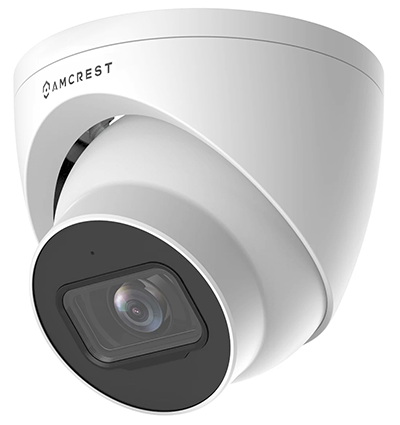
In this blog post, we will go through the process of setting up a video surveillance system for your home, based around our macOS CCTV software SecuritySpy. When setting up a home CCTV system, cost is an important consideration, but we also want to choose high-quality hardware that is easy to install and set up. To this end, our example system will comprise the following components:

Cameras: we have chosen to use Amcrest IP8M cameras for the following reasons:

  • Physically quite small and unobtrusive.
  • Easy plug-and-play setup (no manual IP/network setup required).
  • High resolution (8 MP), night vision, and good codec support (H.265 and AAC).
  • A built-in microphone – essential for a camera covering an entrance.
  • Great value at around USD $100.

IP5M-T1179EW-28MM Camera Continue reading

Adding Live Video To Any Web Page

This tutorial will show you how to add live video from SecuritySpy to your own web page. This does involve editing the HTML of your web page, but it’s relatively simple. Our favourite tool for this is TextMate.

Firstly, you must set up SecuritySpy for remote monitoring, so that it can be accessed over the internet. Next, create a special user account in SecuritySpy that has permission only to view the camera that you want to use. Finally, determine the camera number for the camera in question – this is shown in the Camera Info window (highlighted in red below). If you don’t see this column, click the header bar where you see the column names, and a menu will pop up that allows you to add it.

ci_no1

Three methods for embedding the video feed into a web page are outlined below. In the examples shown, the address of the SecuritySpy system is “demo.viewcam.me”, the port is 8000, and the camera number is 1.

Authentication is supplied via an auth parameter, which is the the Base64 representation of the string user:pass (i.e. the username and password, separated by a colon). Use an online Base64 encoder to generate this value: simply enter your user:pass string, click the Encode button, and copy and paste the result.

If you want to specify a particular size for the image, add width and height parameters, for example the URL in Method 1 would become something like this:

http://demo.viewcam.me:8000/++video?cameraNum=1&width=640&height=480

Continue reading